
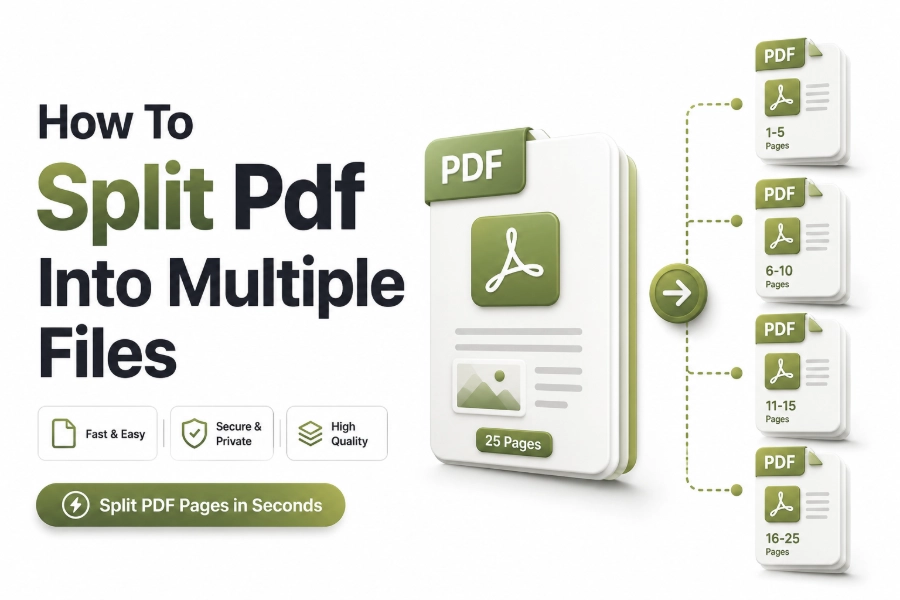
Learning how to split pdf into multiple files helps you manage large documents, share only relevant pages, and keep digital files easier to organize. Writers, students, legal teams, and office professionals often need separate files from one long PDF.
A single PDF may contain invoices, reports, contracts, forms, or scanned records that do not belong together. Splitting the file allows each section to stand on its own, with a clear name and purpose.
The process is simple when you know what to check before starting. Page order, file quality, privacy, naming, and final storage all matter when turning one document into several polished PDF files.
Why Splitting a PDF Matters
PDFs are useful because they preserve layout, fonts, images, and formatting across devices. However, very large PDF files can become difficult to email, upload, review, or store inside organized folders.
When a document contains several topics, clients, chapters, or forms, keeping everything in one file can slow people down. Splitting the PDF creates smaller files that are easier to open and review.
This is especially helpful in professional workflows. A content team may separate drafts, a business may divide invoices, and a student may extract chapters from a study packet.
Common reasons to split a PDF
- Sharing selected pages with clients or coworkers
- Separating invoices, receipts, or forms by date
- Extracting one chapter from a long ebook or guide
- Dividing scanned paperwork into individual records
- Reducing file size for email or upload limits
- Keeping private pages out of shared documents
Best Times to Split a PDF
The best time to split a PDF is before you send, archive, or upload it. This gives you control over what each recipient sees and keeps unnecessary pages out of the final file.
Splitting also helps during content review. If a document has different reviewers for different sections, each person can receive only the pages connected to their role or task.
It is also useful after scanning paper documents. Many scanners create one long PDF, even when the pages represent separate forms, contracts, or reports that need individual file names.
Choosing the Right PDF Splitting Method
The right method depends on your file size, privacy needs, device, and editing goals. Some people only need to extract one page, while others need to create several files at once.
Online tools are convenient for quick jobs, especially when the file does not contain sensitive information. Desktop software can be better for private documents, batch work, or files with strict formatting needs.
Built-in browser tools, PDF readers, and operating system features may also work well. The best choice is usually the one that gives clean output without adding extra steps to your workflow.
Online tools work well when
- The PDF is not private or confidential
- You need a quick split on any device
- You do not want to install software
- The file size is within upload limits
- You need a simple page range selection
Desktop tools work well when
- The PDF contains sensitive information
- You split files regularly
- You need batch processing
- You work with large documents
- You want more control over compression and quality
How Page Ranges Work
Page ranges let you choose exactly which pages become separate PDF files. For example, pages 1-3 can become one file, while pages 4-8 become another file.
This method is useful for structured documents such as reports, guides, manuals, and proposals. If each section already has a clear start and end page, page ranges are fast and accurate.
Before selecting ranges, review the PDF carefully. Cover pages, blank pages, table of contents pages, and appendices can shift page numbers and cause files to split in the wrong place.
Splitting by Individual Pages
Splitting by individual pages creates a separate PDF for every page in the original document. This is useful when each page represents its own form, certificate, receipt, or record.
For example, a business might scan twenty signed forms into one PDF, then split each page into a separate file. Each file can then be renamed for the correct client or date.
This method creates many files quickly, so organization matters. Use a folder structure and consistent names before splitting, so the final documents do not become difficult to sort.
Splitting by Bookmarks
Some PDF tools can split a document by bookmarks. This is useful for long reports, manuals, policy documents, and ebooks that already contain section markers in the file.
Bookmarks act like a document outline. When a tool reads those bookmarks, it can create separate PDFs based on each major section instead of requiring manual page range entry.
This method saves time on long documents. However, it works best when bookmarks are accurate, clearly named, and placed at the correct section openings inside the original PDF.
Good file naming habits
- Use short but clear file names
- Include dates in a consistent format
- Add client, topic, or section names
- Avoid vague names like final.pdf
- Keep version numbers simple
- Remove duplicate files after checking output
Keeping File Quality Intact
A good PDF split should keep the original quality intact. Text should remain sharp, images should stay clear, and the layout should look the same after each new file is created.
Most splitting tools do not reduce quality unless they also compress the file. If you notice blurry images or lighter text, check whether compression settings were applied during export.
For image-heavy PDFs, choose a tool that preserves original resolution. This is important for portfolios, scanned documents, design files, legal records, and any document where visual detail matters.
Protecting Private PDF Content
Privacy should guide your choice of tool. If a PDF contains contracts, tax records, medical forms, passwords, financial details, or personal identification, avoid uploading it to unknown online services.
Desktop PDF software is usually safer for confidential files because the document stays on your device. Some trusted web tools also delete files after processing, but you should verify their policy.
Before sharing split files, open each one and confirm it contains only the intended pages. This simple check prevents private or unrelated pages from being sent by mistake.
How to Split PDF Into Multiple Files on a Computer
On a computer, you can often split a PDF through a PDF editor, print dialog, preview app, or browser. The exact steps depend on your operating system and available software.
A common method is to open the PDF, choose print, select custom pages, and save the selected range as a new PDF. Repeat this for each section you need.
For frequent work, a dedicated PDF editor is more efficient. It can split by ranges, pages, bookmarks, size, or repeated intervals, which reduces manual effort on large documents.
How to Split PDF Files on Mobile
Mobile PDF splitting is useful when you receive documents on the go. Many PDF apps on iPhone and Android allow page extraction, file saving, and sharing directly from the phone.
The smaller screen can make page selection harder, so preview carefully before exporting. Zoom in when needed and confirm the correct pages are selected before saving the new file.
Mobile tools are best for light tasks. For long files, complex ranges, or sensitive documents, a desktop workflow usually gives more control and fewer chances for page selection errors.
Internal resources to support your workflow
Read our PDF compression guide when split files still need to be smaller for email, upload portals, or website forms.
Use our merge PDF guide when you need to combine selected pages again after separating, reviewing, or renaming individual files.
Tips for Organizing Split PDFs
After splitting a file, organization becomes the next priority. A clear folder structure prevents confusion, especially when one original document turns into many separate PDF files.
Create one folder for the original PDF and another folder for split files. This keeps the source document safe while giving you space to rename and review the new documents.
Use names that describe the file without opening it. A strong file name may include the document type, date, client name, section title, or page range.
Avoiding Common Splitting Mistakes
One common mistake is splitting before checking page numbers. If the PDF has unnumbered cover pages or blank sheets, the visible page number may not match the actual PDF page.
Another mistake is deleting the original too soon. Keep the source file until every split PDF has been reviewed, named, backed up, and shared with the right person.
People also forget to check permissions. Some PDFs are password-protected or restricted from editing, which may prevent splitting unless you have the correct password or document rights.
Working With Scanned PDFs
Scanned PDFs can be harder to split because they are often image-based. The text may not be selectable, and page previews can be less clear than digital documents.
Optical character recognition, often called OCR, can make scanned PDFs easier to search and label. OCR is useful when you need to find names, dates, invoice numbers, or headings before splitting.
For scanned records, split first only if the page order is obvious. If the document is messy, rotate pages, remove blanks, and correct orientation before creating separate files.
Splitting PDFs for Business Use
Businesses split PDFs to improve document handling across teams. Accounting, HR, sales, operations, and legal departments often need separate documents from one combined file.
For example, a single PDF may contain several signed agreements. Splitting those agreements into separate files makes them easier to store under client folders and retrieve later.
A standard naming rule helps teams stay consistent. When everyone uses the same format for dates, client names, and document types, shared folders become easier to search and audit.
Splitting PDFs for SEO and Content Teams
Content teams often handle PDFs such as lead magnets, reports, editorial calendars, briefs, and downloadable guides. Splitting these files can support cleaner publishing and easier asset management.
A long guide may contain sections that work better as separate downloads. Splitting allows teams to create focused resources for different audience needs without rebuilding the original document.
SEO teams may also split PDFs to update outdated sections. Instead of replacing one large file, they can revise selected sections, rename assets clearly, and keep content libraries better organized.
Quality Checklist Before Sharing
Before sharing split PDFs, open each file and review it from start to finish. Check page order, margins, orientation, image clarity, and whether the right pages were included.
Confirm the file name matches the content. A mislabeled PDF can create confusion, especially when files are uploaded into client portals, shared drives, school systems, or business archives.
Finally, test the file size and accessibility. Make sure the PDF opens properly, is not corrupted, and can be read on the device or platform where it will be used.
Pre-sharing checklist
- Open every split PDF
- Check first and last pages
- Confirm page order
- Review file names
- Test password protection when used
- Remove blank or duplicate pages
- Keep the original until final approval
Conclusion
Knowing how to split pdf into multiple files makes document management easier, cleaner, and more professional. It helps you share selected pages, protect private information, reduce clutter, and organize files around real tasks.
The best method depends on the document type and your privacy needs. Online tools are useful for quick work, while desktop tools are better for sensitive files, large PDFs, and repeated splitting tasks.
A good workflow includes careful page selection, clear file names, quality checks, and secure storage. When each new PDF is accurate and easy to identify, the entire document process becomes smoother.
FAQ
Can I split a PDF without installing software
Yes, many online PDF tools let you split files directly in a browser. This works well for basic documents, but avoid uploading private, legal, medical, or financial files unless the service has clear security and deletion policies.
Will splitting a PDF reduce quality
Splitting alone usually does not reduce quality. Text, images, and layout should stay the same. Quality loss usually happens when compression is added during export, so check settings before saving the new files.
Can I split password-protected PDFs
You can split a password-protected PDF only if you have permission and the correct password. Some files also have editing restrictions, so you may need to remove restrictions legally before creating separate PDF files.
What is the easiest way to split one page from a PDF
The easiest method is to open the PDF, select the needed page through a PDF editor or print dialog, then save that page as a new PDF. Always preview the page before saving.
How should I name split PDF files
Use clear names that describe the content, date, and purpose. For example, include the client name, document type, and date. Consistent naming makes files easier to search, sort, share, and archive.
0 Comments