
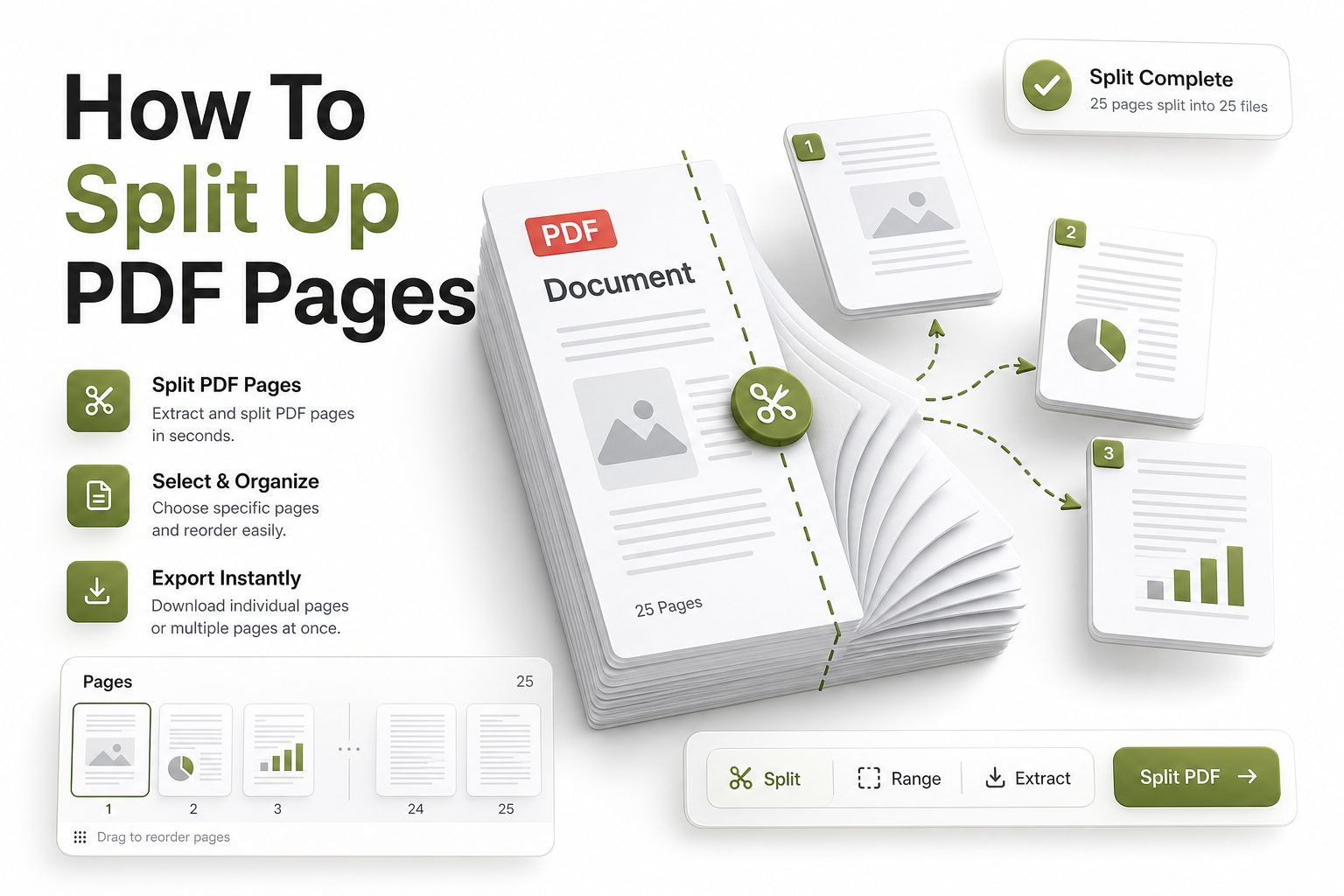
PDF files are useful because they preserve formatting, layout, images, signatures, and page order across devices. Still, one large PDF can become difficult to share, review, archive, or edit when only a few pages are actually needed.
Knowing how to split up PDF pages helps you turn bulky documents into focused files. You can separate chapters, invoices, forms, reports, certificates, contracts, or scanned pages without recreating the original document from the beginning.
This guide covers practical splitting methods, file naming habits, quality checks, security points, and workflow tips. It is written for everyday users, office teams, students, freelancers, and businesses that handle PDF documents regularly.
Why Splitting PDF Pages Matters
Large PDF files often contain more information than one recipient needs. Sending the whole document can create confusion, expose unrelated details, and make the file harder to download, especially when people are working from mobile devices.
Splitting pages keeps communication cleaner. A client can receive only the signed agreement, a student can submit only the required chapter, and an accountant can extract only the monthly receipts needed for review.
Smaller PDF files are also easier to store and organize. When each file has a clear purpose, teams spend less time searching through long documents and more time acting on the information inside them.
Common Situations for Splitting PDF Files
Many people split PDFs after scanning a stack of paper documents into one file. A single scan may include invoices, IDs, applications, statements, and receipts that need to be saved or shared separately.
Writers, editors, and marketers often split PDFs when working with ebooks, reports, media kits, white papers, or client drafts. Sending one section at a time makes feedback easier and keeps reviewers focused on the right pages.
Legal, finance, education, and healthcare teams also rely on page splitting. These workflows usually involve privacy, compliance, and version control, so separating only the needed pages reduces risk and improves document handling.
Quick Workflow Checklist
Step 1: Open the PDF and review the page numbers before making changes.
Step 2: Decide whether you need single pages, page ranges, or several grouped files.
Step 3: Create a copy of the original PDF before splitting it.
Step 4: Choose a trusted PDF splitter, desktop editor, browser tool, or built-in print option.
Step 5: Rename each new file clearly using dates, names, document types, or project labels.
Step 6: Open every exported PDF to confirm the pages, order, formatting, and file size.
Step 7: Store the original file separately in case you need to create another version later.
Main Ways to Split PDF Pages
The easiest method depends on your device, privacy needs, and document complexity. Online tools are fast for simple files, while desktop software is better for confidential documents, large files, or repeated professional work.
Most PDF splitters let you extract one page, choose a page range, or divide a document into equal parts. Some tools also allow batch processing, bookmarks-based splitting, and automatic naming for larger document sets.
If your PDF contains sensitive information, avoid uploading it to random websites. Use trusted software, secure cloud platforms, or offline desktop tools when working with contracts, medical records, financial statements, IDs, or confidential business material.
Using an Online PDF Splitter
Online PDF splitters are convenient because they work directly in a browser. You upload the file, select the pages you want, and download the separated PDF files after the tool finishes processing.
This method is helpful for quick, low-risk tasks such as separating study notes, public brochures, event schedules, product sheets, or general forms. It saves time because no installation is needed.
Before using an online tool, check file size limits, privacy policies, automatic deletion rules, and download options. A reliable tool should provide clear controls and should not make the process confusing with unnecessary steps.
Using Desktop PDF Software
Desktop PDF software gives you more control when splitting pages. Programs such as Adobe Acrobat, PDF editors, and business document tools often include options for extracting, deleting, rearranging, and saving selected pages.
This approach is better for professional work because files stay on your computer. It is also useful when PDFs contain forms, signatures, bookmarks, annotations, layers, or high-resolution images that need careful handling.
Desktop tools usually support repeatable workflows. If you split reports, contracts, or scanned records every week, a dedicated editor can save time and reduce mistakes compared with manual browser-based processing.
Using Print to PDF
Print to PDF is a simple built-in method available on many computers. Open the PDF, choose the print option, select the page range, and save the selected pages as a new PDF file.
This method works well when you need one clean page range, such as pages 3 to 8 or pages 15 to 20. It is fast, familiar, and does not require special PDF editing software.
The main limitation is flexibility. Print to PDF may not preserve every interactive feature, bookmark, form field, or metadata item. For basic documents, it works well, but complex files need a stronger editor.
Splitting PDFs on Windows
Windows users can split simple PDFs through Microsoft Edge, Chrome, or another browser with a print function. Open the file, press print, choose Microsoft Print to PDF, and enter the page range.
For more control, use a PDF editor that includes extract and organize page tools. These features let you preview thumbnails, select non-consecutive pages, and create several files from one document.
Windows workflows are especially useful in offices where files arrive from email, scanners, or shared drives. Clear file naming and folder structure make the biggest difference after the split is complete.
Splitting PDFs on Mac
Mac users can split PDFs with Preview, which is included with macOS. Open the file, show thumbnails, select the pages you need, then drag them into a new document or export them.
Preview is useful for quick edits and page extraction. It also supports reordering pages, deleting unwanted pages, and combining selected pages into a smaller PDF without installing extra software.
For advanced tasks, Mac users may still prefer a dedicated PDF editor. This is helpful when managing protected files, fillable forms, large reports, OCR text, or documents that need strict formatting control.
Splitting PDFs on Mobile Devices
Mobile PDF splitting is useful when you receive documents on the go. Many PDF apps for iOS and Android include page extraction, sharing, renaming, and cloud saving features.
The best mobile workflow starts with a clear review of page thumbnails. Small screens make mistakes easier, so zoom in, confirm page numbers, and check the exported file before sending it.
Mobile tools are convenient, but they are not always ideal for confidential files. If the document includes sensitive personal, legal, or business information, use a trusted app with strong privacy controls.
Choosing the Right Page Range
Before splitting, decide exactly which pages belong together. A page range should make sense as a standalone file, especially when the recipient will not have access to the full original document.
Check whether cover pages, tables of contents, appendices, signatures, or supporting notes need to be included. Missing context can make a short PDF harder to use, even if the pages are technically correct.
For business documents, label page ranges before exporting. A simple note such as “pages 4 to 9 for client approval” helps prevent accidental omissions and keeps the process easier to review.
How to Keep File Quality High
PDF quality can change during splitting if the tool compresses images, flattens forms, or converts pages during export. Always check whether the new file looks as sharp as the original.
Scanned documents need special care because text may be stored as images. If a tool heavily compresses the file, signatures, stamps, small text, and tables may become harder to read.
When quality matters, choose settings that preserve original resolution. After exporting, open the new PDF, zoom in on important details, and test printing if the file will be used physically.
File Naming and Folder Organization
Good file names make split PDFs easier to search and share. Use names that include the document type, date, client name, project name, or page purpose instead of vague labels.
A file named “invoice-march-2026-client-name.pdf” is more useful than “split-file-final.pdf.” Clear naming reduces back-and-forth messages and helps people locate the right document months later.
Create folders for originals, split files, approved files, and sent files. This keeps your workflow clean and protects the untouched source PDF from accidental edits or overwriting.
Internal Resource for Related Tasks
Related guide: merge PDF files online
Internal resource: compress PDF without losing quality
These related workflows often happen after splitting a file. You may need to combine selected pages into a new packet, reduce the file size for email, or prepare a clean version for upload.
Security Tips Before Splitting a PDF
Security matters whenever a PDF includes private, financial, legal, or personal information. Splitting a file can reduce exposure, but the wrong tool can also create new privacy concerns.
Use offline software for sensitive documents whenever possible. If you use an online tool, choose a reputable provider with clear deletion practices, secure transfer, and no unnecessary account requirements.
After splitting, review each exported file for hidden pages, comments, metadata, attachments, or form data. Removing unnecessary information keeps the final PDF cleaner and safer to share.
Handling Password-Protected PDFs
Some PDFs are protected with passwords or editing restrictions. You may need permission from the document owner before extracting pages, especially when the file is part of a legal or business process.
If you have the correct password, many PDF editors allow page extraction after unlocking the file. The new files may or may not keep the same protection depending on the software settings.
After splitting a protected document, apply password protection again if needed. A smaller file can still contain sensitive information, so security should follow the content, not just the original file.
Splitting Scanned PDFs
Scanned PDFs often behave differently from digitally created PDFs. Each page may be a large image, which means the file size can stay high even after splitting only a few pages.
If the document needs searchable text, run OCR before or after splitting. OCR helps users search names, dates, invoice numbers, and keywords inside the exported PDF files.
Check page rotation, margins, blank pages, and scan clarity before sending the final files. Scanned documents often include extra pages or shadows that should be removed during cleanup.
Splitting PDFs for Business Workflows
Business teams often split PDFs to prepare client packets, contract sections, onboarding documents, proposals, invoices, and compliance records. A consistent workflow keeps these files easier to approve and archive.
Create naming rules and folder rules for the team. When everyone uses the same structure, it becomes easier to track versions, find sent documents, and avoid duplicate files.
For repeated tasks, use software with batch splitting, automation, or templates. These features are useful when processing monthly statements, multi-client reports, or document sets from a scanner.
Splitting PDFs for Students and Educators
Students often split PDFs to submit selected pages from assignments, extract chapters, organize research, or share notes with classmates. Smaller files are easier to upload to learning platforms.
Educators may split textbooks, worksheets, lesson packets, rubrics, or scanned classroom documents. This helps distribute only the relevant material for a specific lesson, week, or assignment.
File clarity is especially important in education workflows. Add course names, assignment titles, dates, and page labels so students and instructors can identify the correct file quickly.
Splitting PDFs for Content and Marketing Teams
Content teams often work with ebooks, press kits, reports, design proofs, presentations, and brand documents. Splitting a PDF lets teams send only the section that needs review.
Marketing teams may extract case studies, product sheets, pricing pages, or campaign reports for different audiences. This keeps communication focused and helps each recipient receive relevant material.
Writers and editors should keep a master PDF unchanged. Split files can support review cycles, but the original document remains the source for final publishing, archiving, and future revisions.
Mistakes to Avoid When Splitting PDFs
One common mistake is deleting pages from the original file without saving a copy. Always work from a duplicate so you can return to the source if something goes wrong.
Another mistake is sending split files without checking them. Page order, missing signatures, blank pages, and broken formatting can create delays, especially when documents are used for approvals.
Avoid unclear file names such as “new document” or “pages fixed.” Professional naming makes the file easier to trust, easier to search, and easier to manage across teams.
Best Practices for Clean PDF Splitting
Start by reviewing the whole document and identifying the exact output you need. This prevents rushed exports and reduces the chance of missing pages or including unrelated information.
Use reliable tools that preserve quality, formatting, and page order. For sensitive files, choose offline software or trusted cloud platforms instead of unknown free tools with unclear privacy practices.
Finish with a final review. Open each exported PDF, confirm the page count, inspect important details, check the file name, and save it in the correct folder.
Conclusion
Splitting PDF pages is a practical skill for anyone who handles documents regularly. It helps reduce file size, protect unrelated information, improve sharing, and create cleaner document workflows for work, study, business, and personal tasks.
The best method depends on your needs. Online tools are fast for simple files, desktop software is better for sensitive or complex documents, and built-in print options work well for basic page ranges.
When learning how to split up pdf pages, focus on accuracy, privacy, file quality, and organization. A careful workflow gives you smaller, clearer files that are easier to send, store, review, and reuse.
FAQ
Can I split a PDF without installing software
Yes, you can use a trusted online PDF splitter or a browser print feature. Online tools are convenient for simple files, while print to PDF works well for basic page ranges on many devices.
Does splitting a PDF reduce quality
Splitting usually keeps quality the same if the tool extracts pages without recompressing them. Quality may drop if the tool converts pages, compresses images heavily, or changes scanned content during export.
Can I split password-protected PDF files
Yes, if you have the correct password and permission to edit the file. After exporting selected pages, review the new PDF and apply password protection again if the content is still sensitive.
What is the safest way to split confidential PDFs
The safest option is usually offline desktop PDF software. This keeps the document on your device and reduces exposure to third-party upload systems, especially for legal, medical, financial, or identity-related files.
Can I split one PDF into many files
Yes, many PDF tools can extract single pages, selected ranges, or multiple sections at once. Batch splitting is useful for reports, scanned records, invoices, contracts, and document sets with repeated structures.
0 Comments